Google Cloud Email API Solution: Automate Email Workflows Tutorial
Sending email using Google Cloud Application Integration is a recommended enterprise pattern for building reliable, event-driven email automation on Google Cloud Platform (GCP).
Email may sound simple — we do it every day — but when you’re building enterprise systems and workflows on Google Cloud Platform (GCP), sending emails automatically in response to events or triggers is far more complex than clicking Send.
Let’s say you want to send an email when:
- A system detects an error.
- A document is uploaded to Cloud Storage.
These are common needs in modern cloud applications. But here’s the problem: Google Cloud Platform (GCP) doesn’t offer a built-in, native service for sending emails directly from workflows or triggers. That means, until now, if you wanted to send an email as part of a business process or automation, you’d have to:
- Write custom code,
- Set up an external email service like SendGrid or Mailgun,
- Or use third-party platforms and APIs — which adds complexity and extra management.
This has been a long-standing challenge for developers and teams using Google Cloud Platform (GCP).
But now, Google Cloud’s Application Integration brings a powerful solution. With this integration tool, you can build workflows that listen for events using Pub/Sub (Google’s messaging system) and send emails using built-in Send Mail tasks — without writing complex code or managing separate email services.
In this article, we’ll explore:
- The problem of native email delivery on GCP,
- How Application Integration helps solve it, and
- How you can use Pub/Sub + Application Integration + Send Mail to build your own event-driven email workflows in a clean, manageable way.
Whether you’re new to GCP or looking to streamline your automation processes, this guide will help you understand and implement a simple, scalable solution for automated emails in your cloud environment.
Event-Driven Email Workflow Architecture on Google Cloud
Sending Email with Google Cloud Application Integration
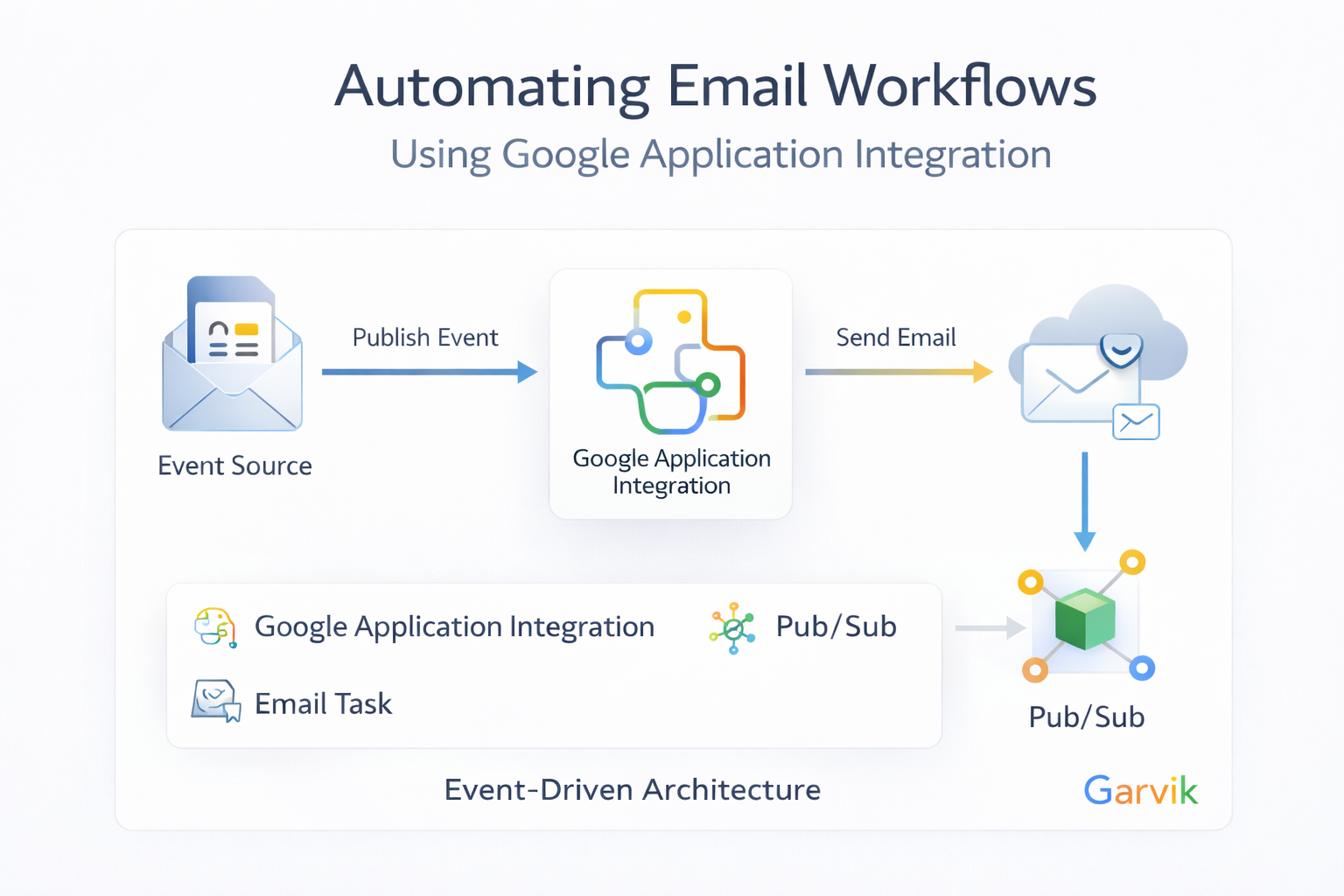
As part of your automated workflows, Google Cloud Application Integration provides a built-in Send Email task that can queue and dispatch emails as part of event-driven pipelines. This can be combined with Pub/Sub triggers for decoupled, scalable processing.
Integration Pattern: Pub/Sub + Send Email Task
A common enterprise pattern is:
- Event Trigger via Pub/Sub — Messages published by upstream systems signal that an email should be sent.
- Application Integration Flow — The workflow orchestrates the Pub/Sub event through transformation, business logic, and finally a Send Email task.
- Send Email Task Execution — The task uses OAuth credentials, templates, and delivery channels (e.g. Gmail API or SMTP) to dispatch the email.
- Observability & Error Handling — Delivery results, retries, and failure states are logged and optionally sent back to Pub/Sub for further orchestration.
This pattern provides reliability, scalability, and enterprise-grade observability when building GCP-native email automation. In the next sections, we’ll walk through how to configure this pattern step by step.
Pre-requisites
The pre-requisites for this tutorial is very simple. You need to have a Google Cloud Platform account and enbale the pub/sub and application integration APIs.
gcloud services enable pubsub.googleapis.com integrations.googleapis.com
You also need to have a service account with the following roles:
- Pub/Sub Publisher
- Application Integration Invoker
You can create a service account and grant the necessary roles using the following gcloud commands:
gcloud iam service-accounts create email-automation-sa --display-name="Email Automation Service Account"
gcloud projects add-iam-policy-binding YOUR_PROJECT_ID --member="serviceAccount:email-automation-sa@YOUR_PROJECT_ID.iam.gserviceaccount.com" --role="roles/pubsub.publisher"
gcloud projects add-iam-policy-binding YOUR_PROJECT_ID --member="serviceAccount:email-automation-sa@YOUR_PROJECT_ID.iam.gserviceaccount.com" --role="roles/integrations.invoker"
Step-by-Step Guide
1. Create a Pub/Sub Topic
First, we need a Pub/Sub topic to which we can publish events.
gcloud pubsub topics create email-automation-topic
2. Create an Application Integration
Now, let’s create the Application Integration workflow.
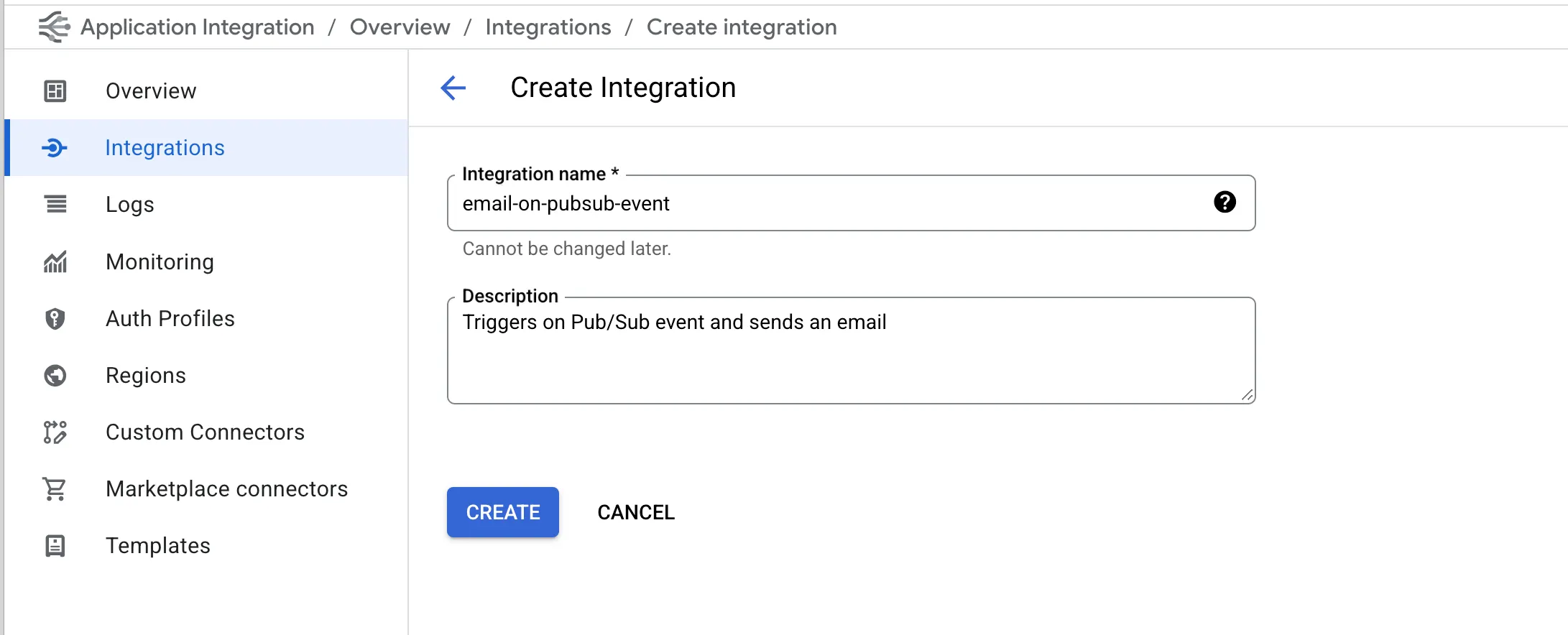
- Go to the Application Integration page in the Google Cloud Console.
- Click on Create Integration.
- Give your integration a name, for example, send-email-on-event.
- Select the region where you want to deploy your integration.
- Click Create.
3. Configure the Pub/Sub Trigger
Next, we need to configure the integration to be triggered by a Pub/Sub message.
- In the integration designer, click on Add a trigger.
- Select the Pub/Sub trigger.
- Select the Pub/Sub topic you created in the step #2 (email-automation-topic).
- Click Done.
Your integration will now be triggered whenever a message is published to the email-automation-topic topic.
4. Add the Send Mail Task
Now, let’s add the Send Mail task to the integration.
- Click on the + icon in the integration designer to add a new task.
- Select the Send Mail task.
- Configure the task with the following parameters:
- To: You can hardcode an email address or use a variable from the Pub/Sub message. For this example, we will use a variable.
- Subject: You can also use variables in the subject.
- Body: The body of the email. You can use HTML and variables here as well.
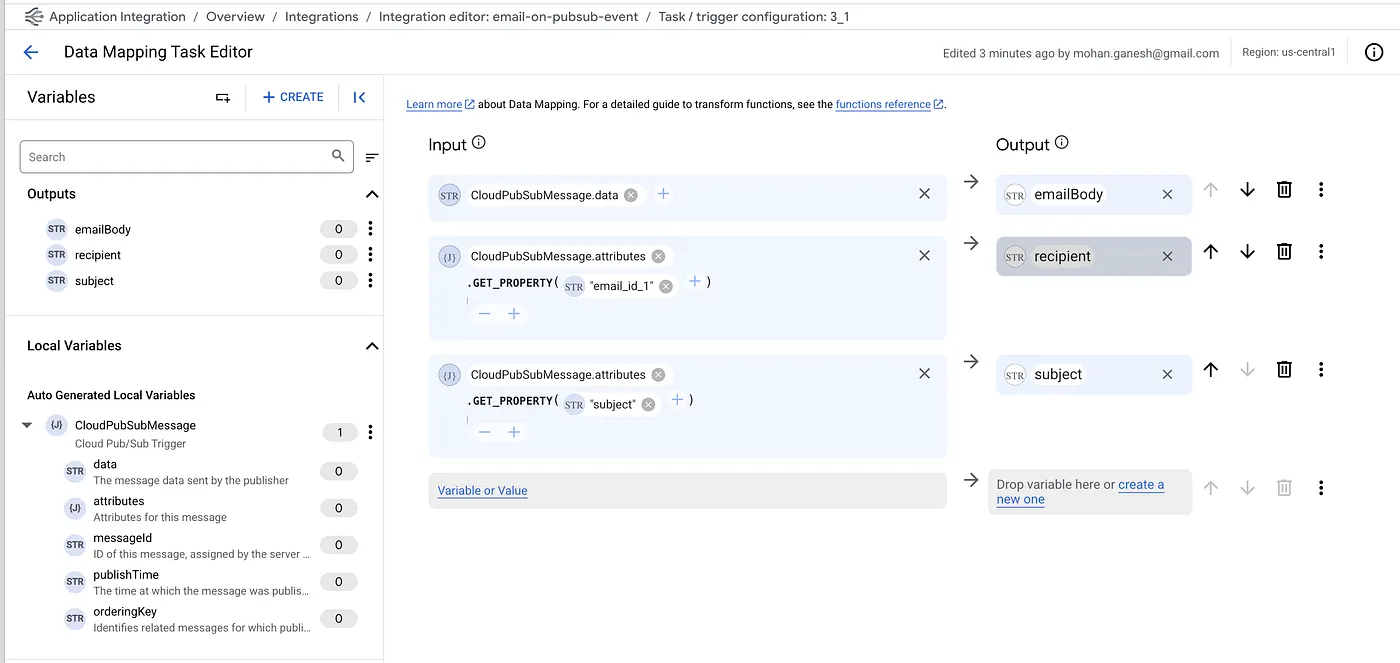
5. Extract Data from the Pub/Sub Message
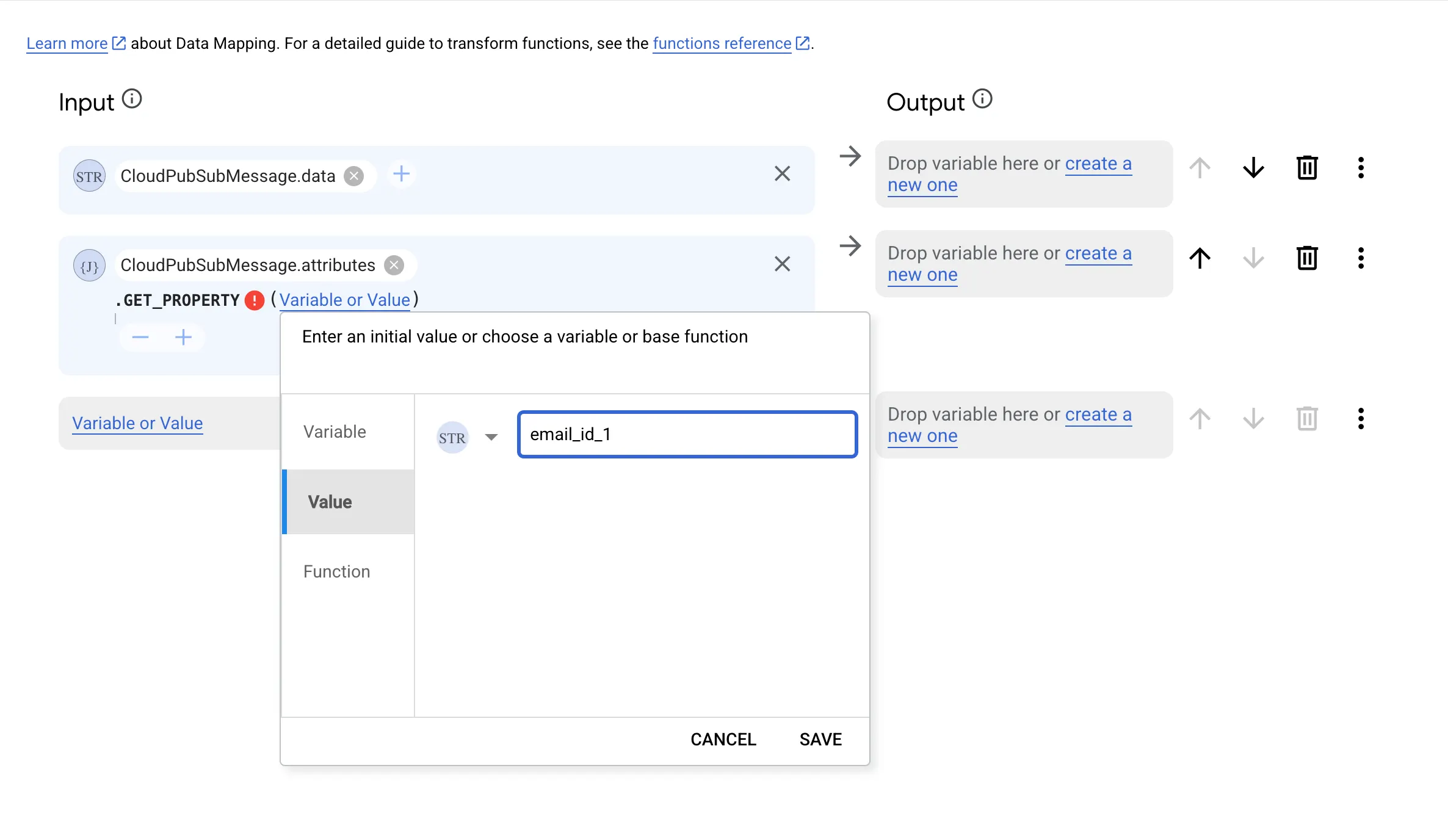
To use data from the Pub/Sub message in the Send Mail task, we need to extract it first.
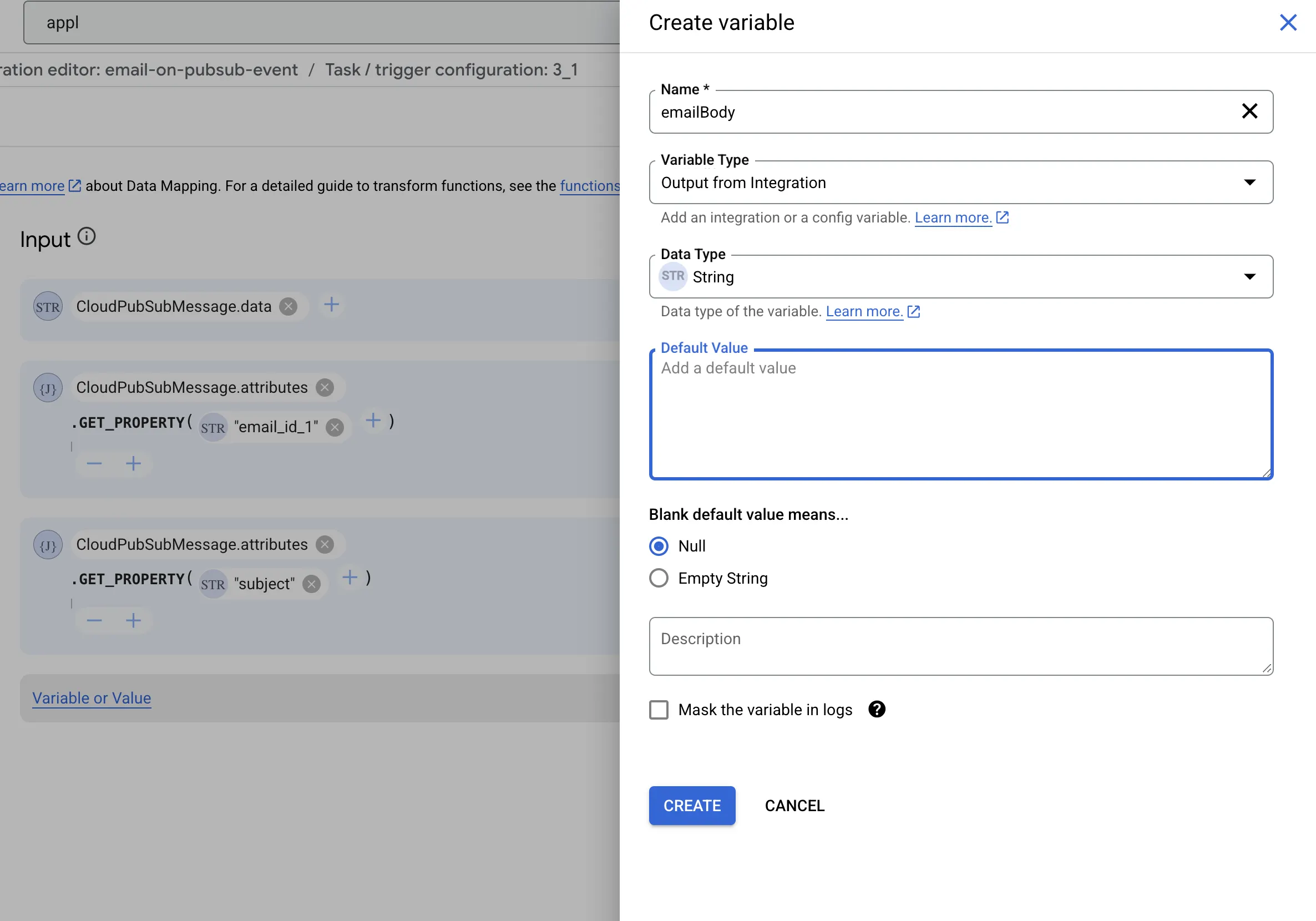
- Add a Data Mapping task before the Send Mail task.
- In the Data Mapping task, you can extract the data from the Pub/Sub message and store it in variables. The Pub/Sub message data is available in the trigger_payload variable.
- For example, if your Pub/Sub message is a JSON object with the following structure:
{ "to": "recipient@example.com", "subject": "Hello from Application Integration", "body": "This is a test email." } - You can extract the "to", "subject", and "body" fields into variables.
6. Use the Variables in the Send Mail Task
In the Send Mail task configuration, map the workflow variables to the corresponding fields:
To→${to}Subject→${subject}Body→${body}
7. Test the Integration
To test the integration, publish a message to the "email-automation-topic" Pub/Sub topic.
gcloud pubsub topics publish email-automation-topic --message '{ "to": "YOUR_EMAIL@example.com", "subject": "Test Email", "body": "This is a test email from Application Integration." }'You should receive an email shortly.
This approach is commonly used to implement GCP email automation, Pub/Sub driven email workflows, and cloud-native email delivery.
Note: Data Mapping vs. Data Transformer
Application Integration offers two primary ways to handle data transformation, and choosing the right one depends on your complexity:
- Data Mapping Task (Click-and-Drag): Best for simple, linear 1-to-1 assignments. It provides a visual interface for direct field mapping but can become difficult to manage with complex logic or nested arrays. (Documentation)
- Data Transformer Task (Scripting): Best for complex logic, conditional transformations, and array manipulation. It uses Jsonnet (a data templating language) which allows for powerful, version-controllable scripts. (Documentation)
To explore the Data Transformer Task, you can visit the Data Transformer Task.
Conclusion
In this article, we have seen how to automate email workflows using Google Cloud Application Integration, Pub/Sub, and the Send Mail task. This approach provides a simple and powerful way to send emails without writing any code.
By leveraging Application Integration, you can build complex workflows that react to events in your GCP environment and automate communication with your users and stakeholders.
🚀 Ready to build more?
Check out our guide on building enterprise-grade applications with the MCP Client/Server Architecture, or explore how multi-server ecosystems work in our MCP Overview.
Implementation FAQ & Common Pitfalls
How do I send emails in Google Cloud reliably?
You can use Google Cloud Application Integration’s Send Email task within a workflow triggered by Pub/Sub or other events. This task can be configured to use Gmail API credentials or SMTP relays depending on requirements.
Can I automate email delivery using Pub/Sub in GCP?
Yes. A common pattern is to publish a message to a Pub/Sub topic, invoke a cloud workflow or Application Integration flow, and use a Send Email task to dispatch the message.
Should I use Gmail API or SMTP for email automation in GCP?
The Gmail API is preferred if you need OAuth-based authorization and detailed error reporting. SMTP is suitable for simpler relay-based delivery or legacy systems. Both can be used within Application Integration or Cloud Run based workflows.